LAB 1
Now that the basics are taken care of, let’s peer the rest of the routers.
Terminal
Basic terminal commands
We won’t go into detail on these commands, but here are the basic commands you will need to know.
Most routers have 3 prompt levels:
Exec mode
frr>- type enable to move to privileged exec mode.Privileged Exec
frr#- from here you can run show, ping, traceroute commands to show statistics and test reachability. Type conf t (short for configure terminal) to move to global configuration mode.Global Configuration
frr(config)#- now you can configure the router, it’s interfaces or routing protocols for example.
You do have the ability to auto complete commands, just type the first few characters and hit the tab key. Or you can use the ? to see the available commands.
Example: show ?
Note
While in global configuration mode, you can use the do command to run commands from the privileged exec level.
do show running-config
do ping 1.1.1.1
do traceroute 1.1.1.1
Peering
Time to start peering the reamining routers, start to distribute routes and test reachability.
Since R1-1 and R2-1 are peered and in the same Autonomous System (AS), we will only need to peer the remaining router R3-1 to R1-1. This too will be an iBGP peer. Rembering that iBGP needs full mesh or route reflector, in this lab we will use route reflector.
Note
iBGP does not share routes it learns from other iBGP peers. This is a route loop prevention mechanism and why we need full mesh or route reflector.
Let’s beging with R3-1 and R1-1 by accessing their web console. On your tab in the command prompt, issue the command
frr# config t
frr(config)#
In either router you can issue the command do show run to see the running configuration. They should match up like the table below.
R1-1 |
R3-1 |
|---|---|
Current configuration:
!
frr version 8.2.2
frr defaults datacenter
hostname frr
service integrated-vtysh-config
!
interface eth0
 description link to R3-1
 ip address 10.1.13.0/31
exit
interface eth1
 description link to R2-1
 ip address 10.1.12.0/31
exit
interface lo
 description local loopback
 ip address 1.1.1.1/32
exit
!
router bgp 1
 bgp router-id 1.1.1.1
 bgp cluster-id 1.1.1.1
 neighbor 10.1.12.1 remote-as 1
 neighbor 10.1.12.1 peer-group pgroup
 !
 address-family ipv4 unicast
  network 1.1.1.1/32
  neighbor 10.1.12.1 route-reflector-client
 exit address-family
exit
!
end
|
Current configuration:
!
frr version 8.2.2
frr defaults datacenter
hostname frr
service integrated-vtysh-config
!
interface eth0
 description link to R1-1
 ip address 10.1.13.1/31
exit
interface eth1
 description link to R1-5
 ip address 10.1.12.0/31
exit
interface lo
 description local loopback
 ip address 1.1.1.3/32
exit
|
Let’s start with R1-1 and build on the exist BGP configuration.
frr# config t
frr(config)# router bgp 1
frr(config-router)# neighbor 10.1.13.1 remote-as 1
frr(config-router)# neighbor 10.1.13.1 peer-group pgroup
frr(config-router)# address-family ipv4 unicast
frr(config-router-af)# neighbor 10.1.13.1 route-reflector-client
frr(config-router-af)# exit
frr(config-router)# do wr mem
frr(config-router)# do show run
Now time for R3-1
frr# config t
frr(config)# router bgp 1
frr(config-router)# neighbor 10.1.13.0 remote-as 1
frr(config-router)# neighbor 192.168.35.1 remote-as 5
frr(config-router-af)# exit
frr(config-router)# do wr mem
frr(config-router)# do show run
frr(config-router)# do show ip bgp summary
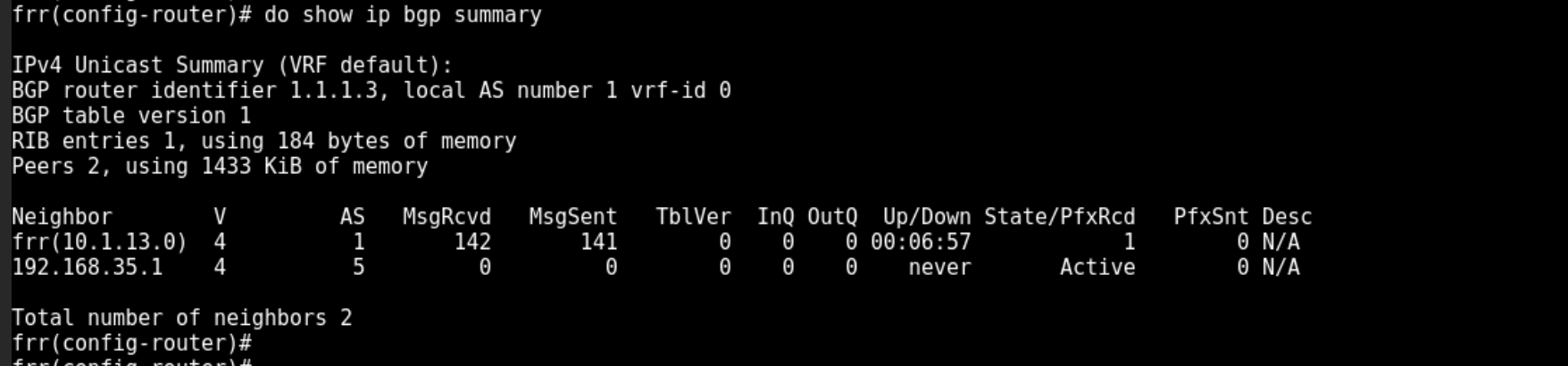
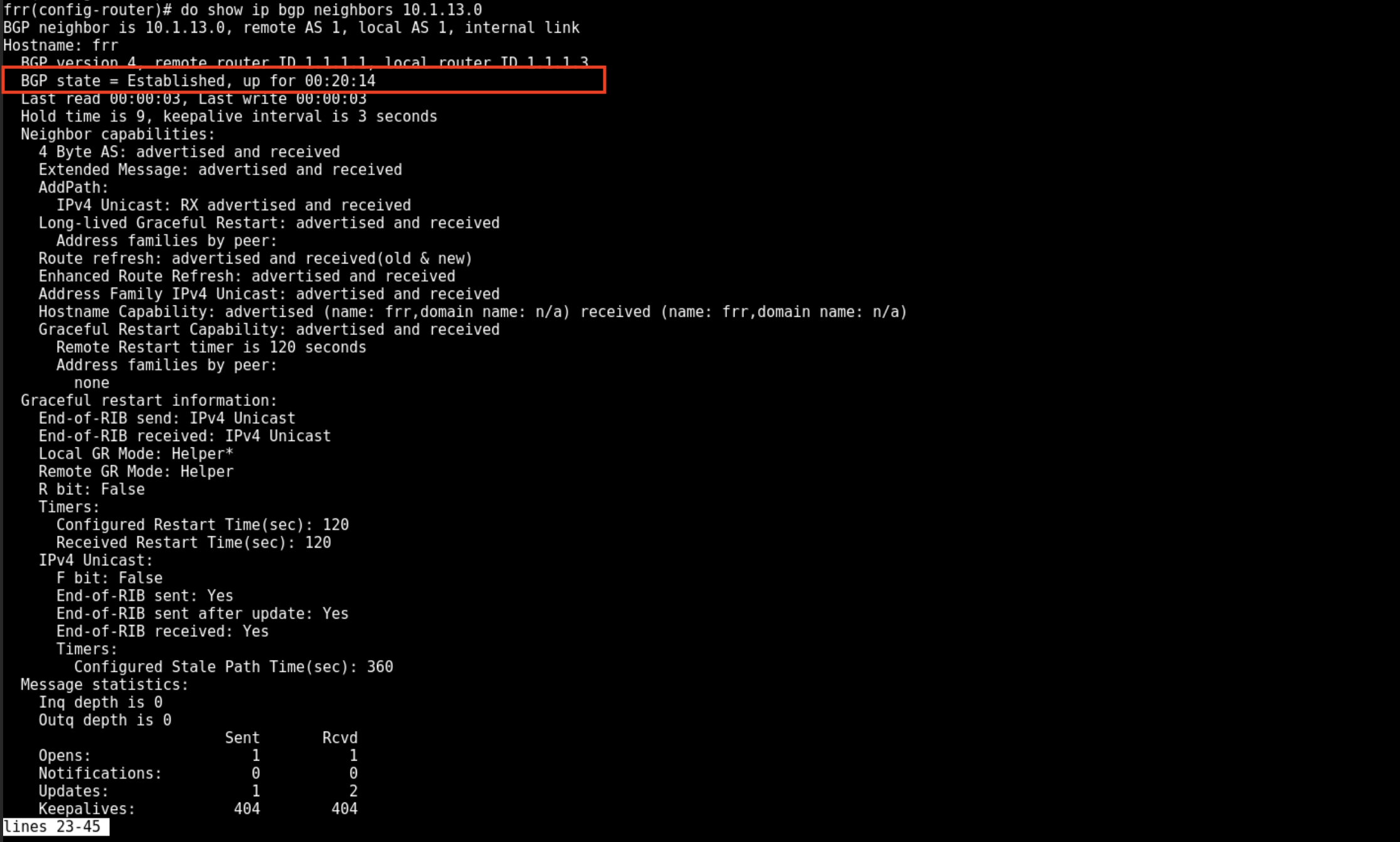
From this output we can see that R3-1 is peered with R1-1 and is Active to peer with R1-5 but is not. How do we know we are peered with R1-1? We can see MsgRcvd and MsgSent are both greater than 0, our Up/Down and State/PfxRcvd shows we have received 1 route from R1-1. How do we see what state our BGP peer is in?
frr(config-router)# do show ip bgp neighbors 10.1.13.0
And now we can check for the prefix we received from R1-1 to see what routes we have learned. We will learn a lot in what appears to be a small amount of information.
frr(config-router)# do show ip bgp
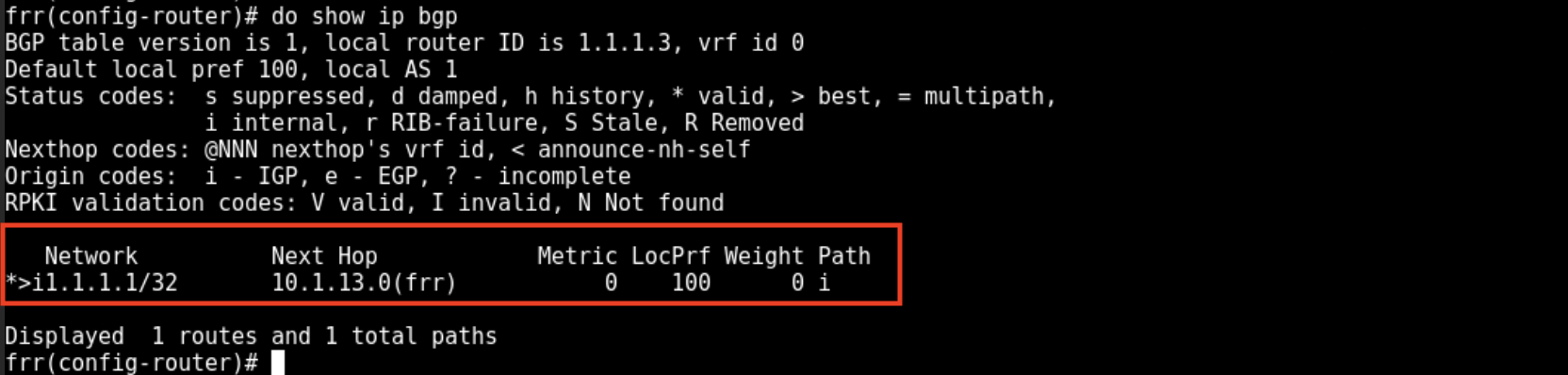
The items will focus on are:
Next-Hop
Metric
LocPrf (Local Preference)
Weight
Path
comes from redistribution.) These are all parts of the BGP best path selection process.
R1-5
frr# config t
frr(config)# router bgp 5
frr(config-router)# neighbor 192.168.35.0 remote-as 1
frr(config-router)# neighbor 172.2.57.1 remote-as 7
frr(config-router)# do wr mem
frr(config-router)# do show run
frr(config-router)# do show ip bgp summary
Just like before, you should see that you are peered with R3-1 and Active to peer with R1-7. You know have an eBGP peer to R3-1. Let’s see what that route information looks like.
frr(config-router)# do show ip bgp
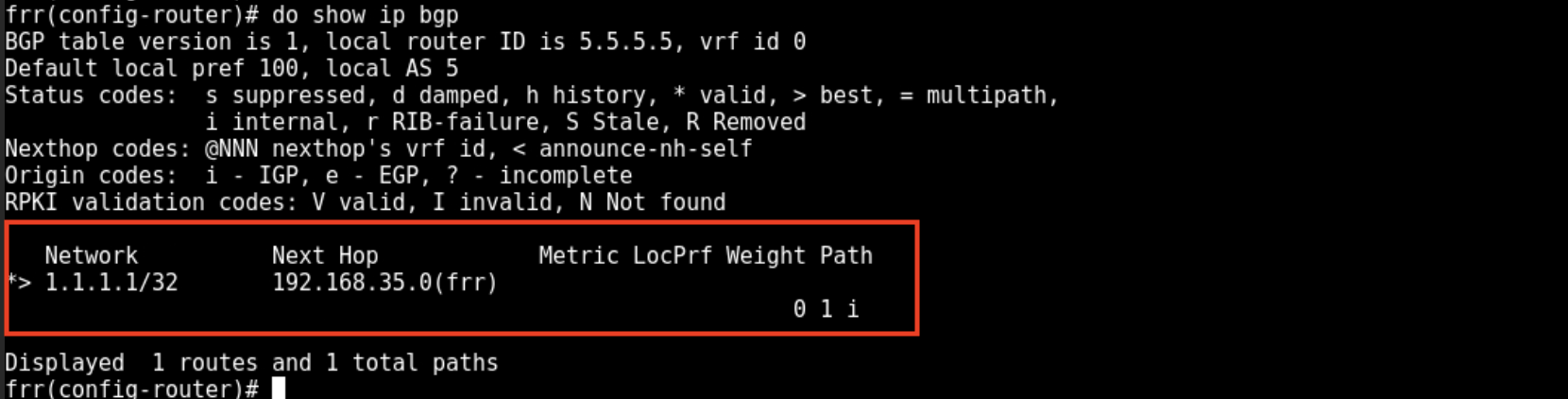
Again you can see the Weight is 0, meaning this route is not local to this router. Under Path you do see the AS Path we learned the router from, in this case it’s R3-1 from AS 1. You will see in later labs steps, this AS Path will show each AS the route has traversed, leading to best path attributes.
R1-7
frr# config t
frr(config)# router bgp 7
frr(config-router)# neighbor 172.2.57.0 remote-as 5
frr(config-router)# neighbor 10.1.67.0 remote-as 6
frr(config-router)# do wr mem
frr(config-router)# do show run
frr(config-router)# do show ip bgp summary
frr(config-router)# do show ip bgp
You should see same info as before, we are peered with R1-5 and Active to peer with R1-6. Let’s check routes, as we should be learning routes from R3-1.
frr(config-router)# do show ip bgp
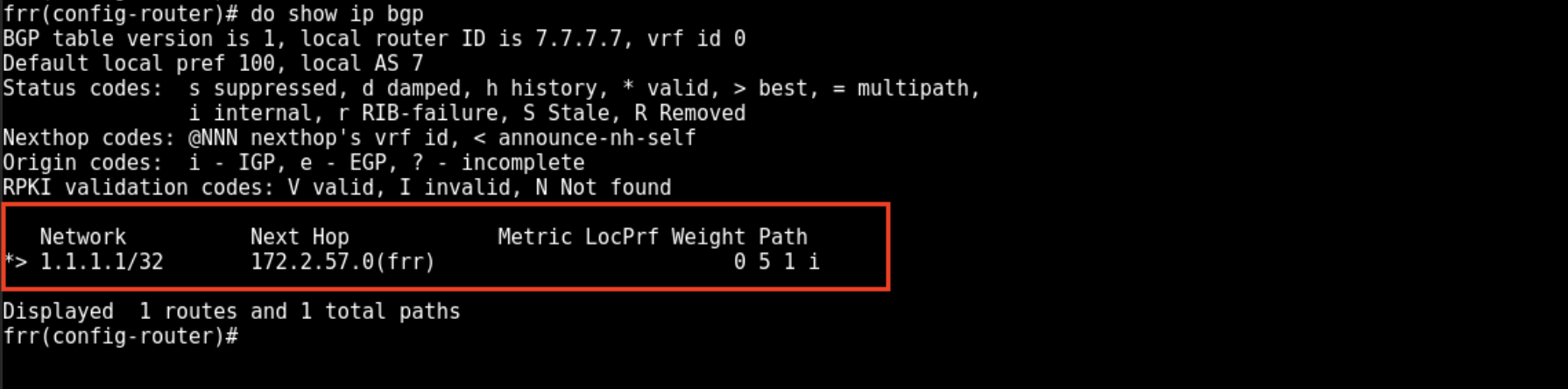
Notice no the AS Path now shows 5 1, meaning the route to 1.1.1.1 has traversed AS 5 and AS 1.
R1-6
frr# config t
frr(config)# router bgp 6
frr(config-router)# neighbor 10.1.67.1 remote-as 7
frr(config-router)# do wr mem
frr(config-router)# do show run
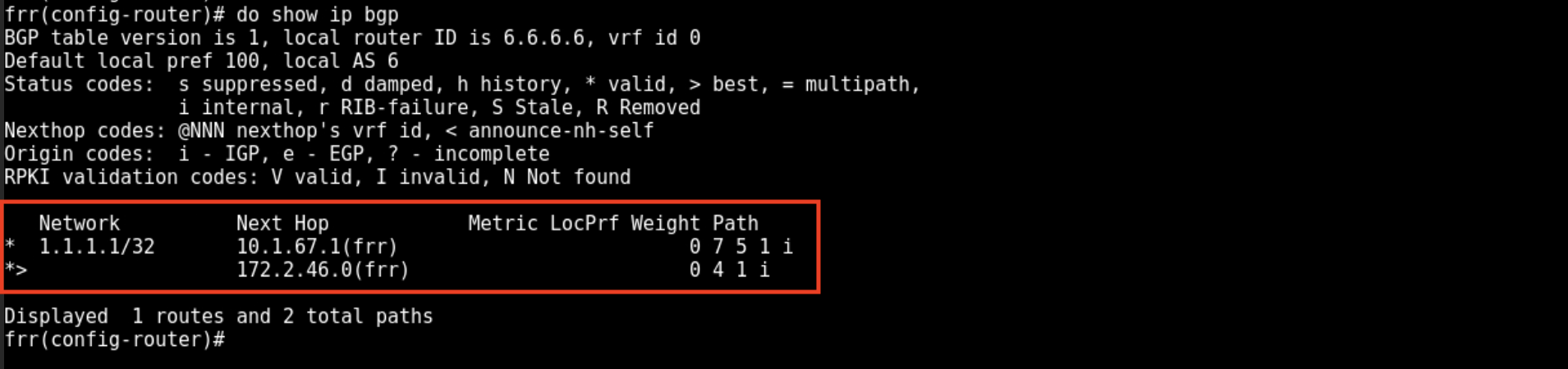
Now we should have completed all BGP peering. Let’s check our one route advertised from R1-1.
frr(config-router)# do show ip bgp
Your output should look like this: